Requires macOS 10.15 or later • Release Notes
Apple Music integration in djay is available in 167 countries - across all platforms - bringing unparalleled music access to djay users around the world. Connect your Apple Music account directly within djay for immediate access to a catalog of over 100 million songs, including your personal library in the cloud.
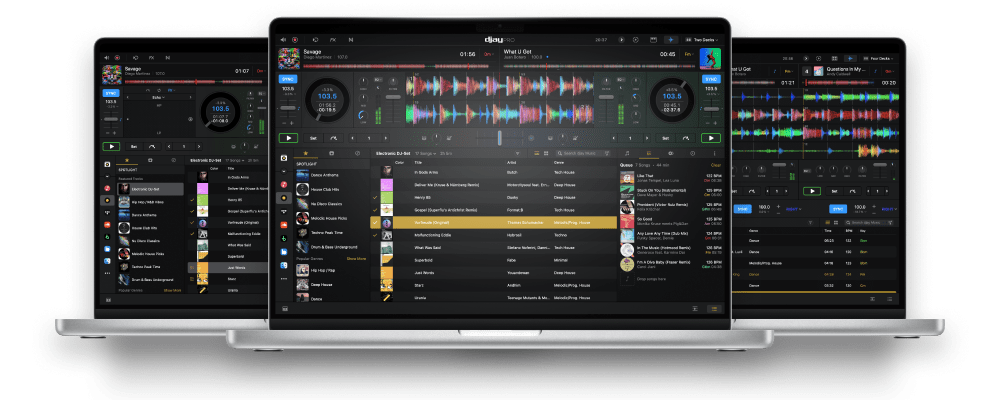
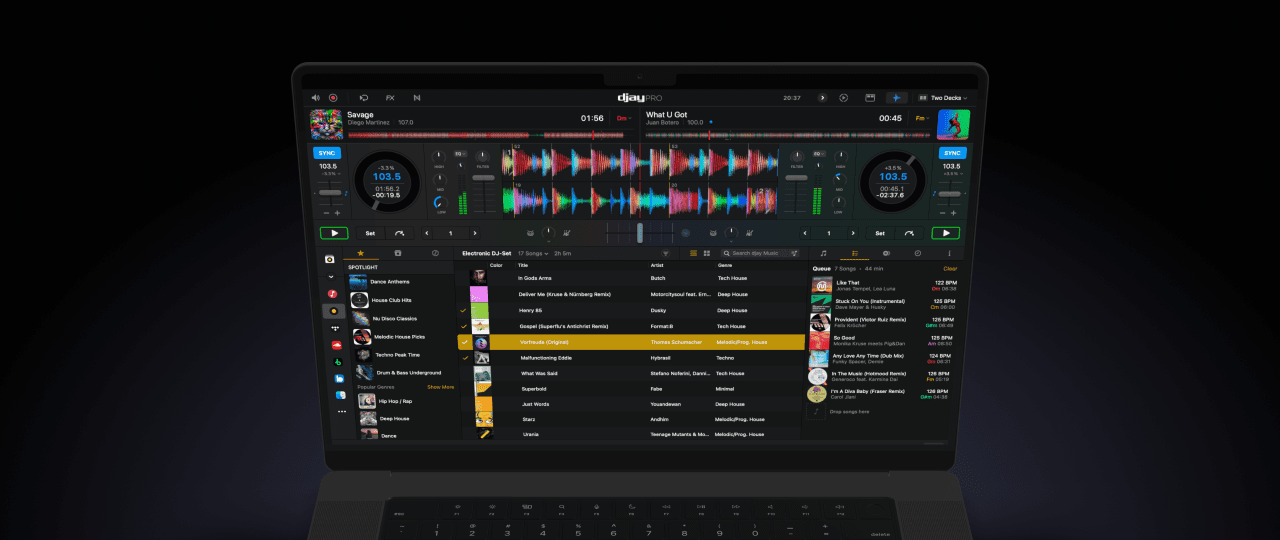
djay’s acclaimed user interface has won multiple Apple Design Awards for excellence in design and ease of use. Building on that foundation, the new djay offers the most intuitive yet powerful interface we’ve ever made: a classic turntable and a mixer setup, an immersive Automix view with gorgeous album cover display, an all-new 2-Deck pro mode to view high resolution waveforms and your library side by side, live music production tools, and so much more.
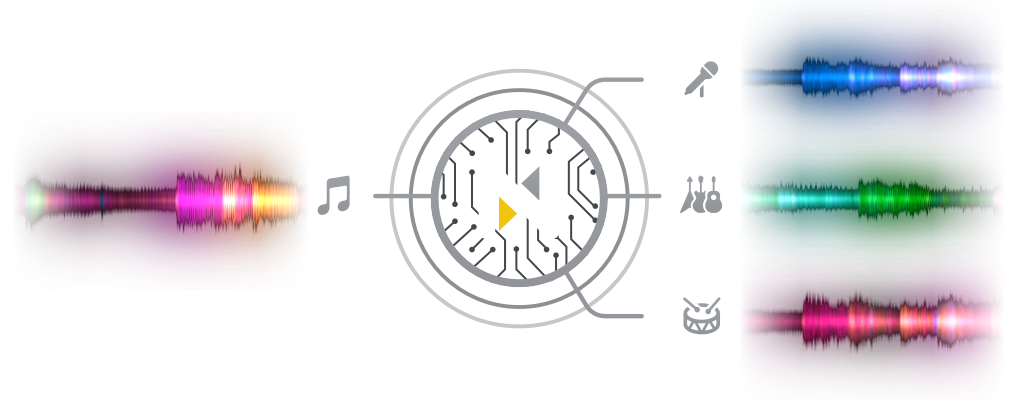
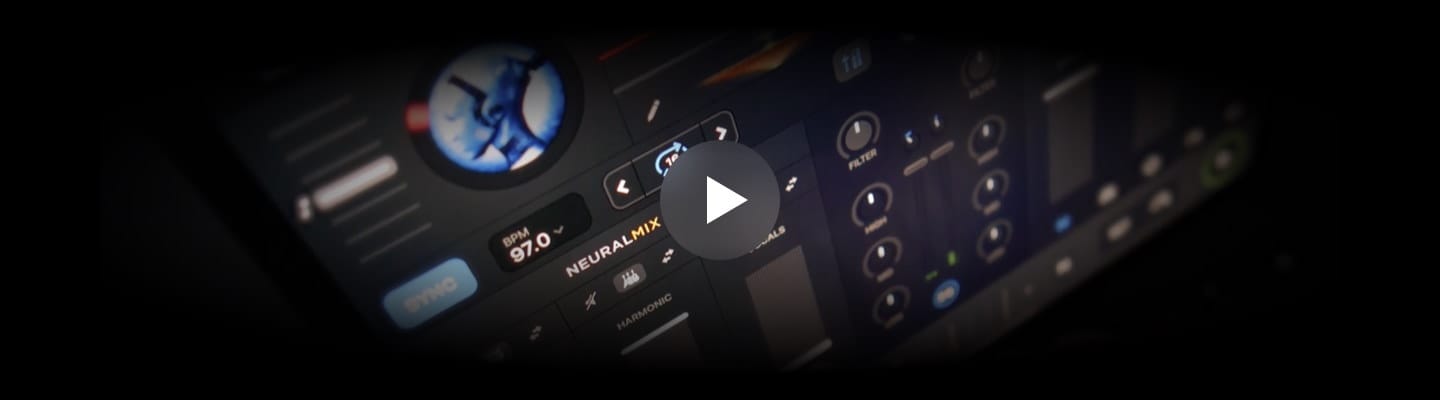
djay Pro introduces Algoriddim’s revolutionary Neural Mix™ technology allowing DJs to play and remix singular elements from multiple tracks in real-time. Instantly isolate beats, instruments, and vocals of any song based on cutting-edge AI.
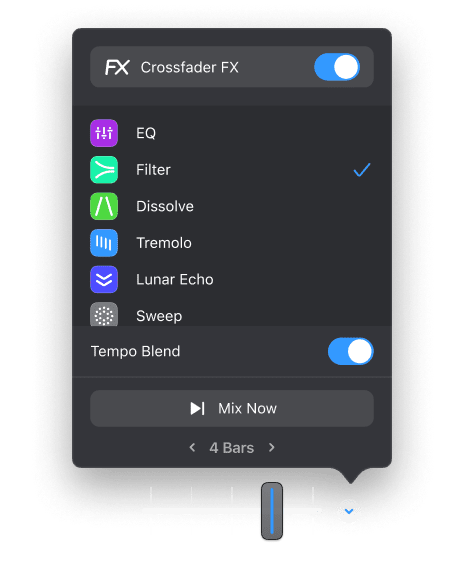
Crossfader Fusion™ allows you to seamlessly morph tracks by deconstructing music in real-time while intelligently applying filters and effects. Fluid Beatgrid™ is the world’s most sophisticated beat matching engine enabling effortless transitions across diverse musical genres and tempos.
Spice up your sets with the new music production tools in djay Pro which allow you to easily record and sequence loops during your mix. It’s as easy as tapping samples in time with the playing track, and it’ll automatically quantise, sync and repeat. If you want to dive deeper into unique musical performance you can load up the grid-based Looper with up to 48 loops, all time-stretched and perfectly matched to the beat. It’s not just mixing — now it’s remixing with djay Pro.
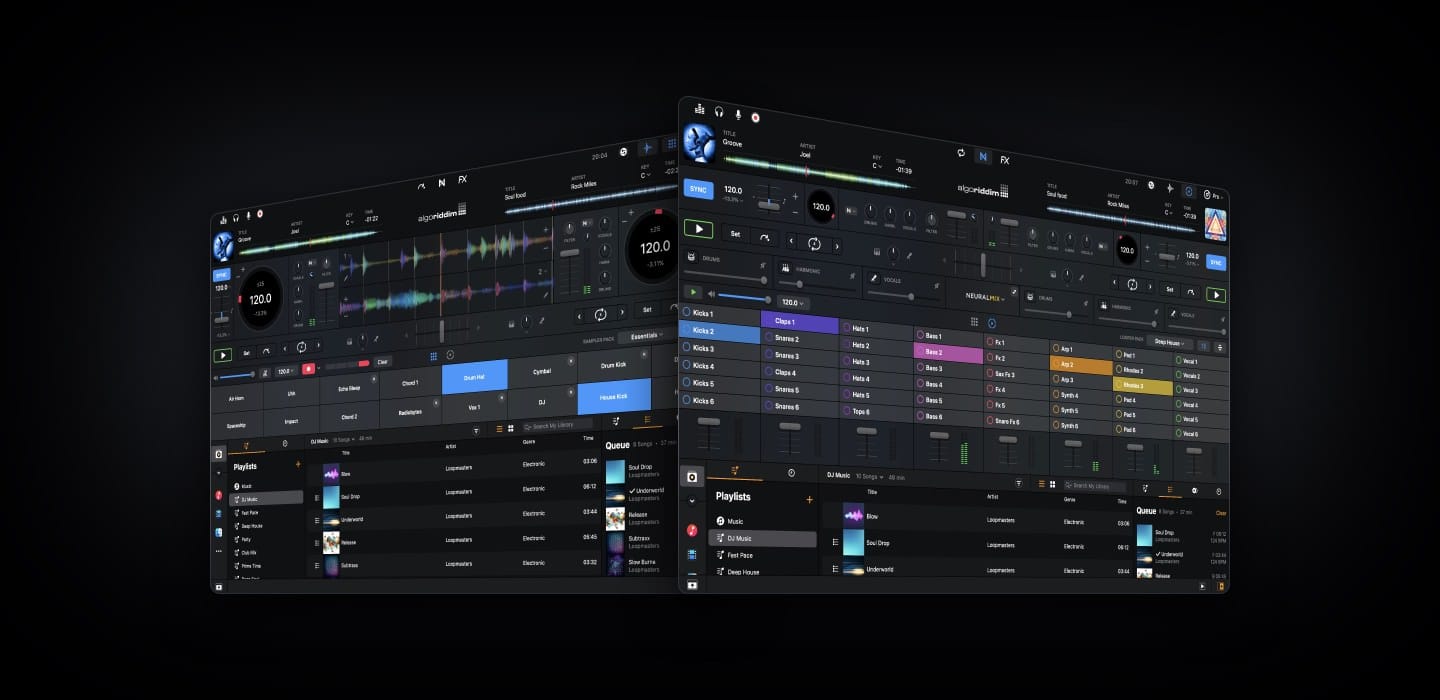
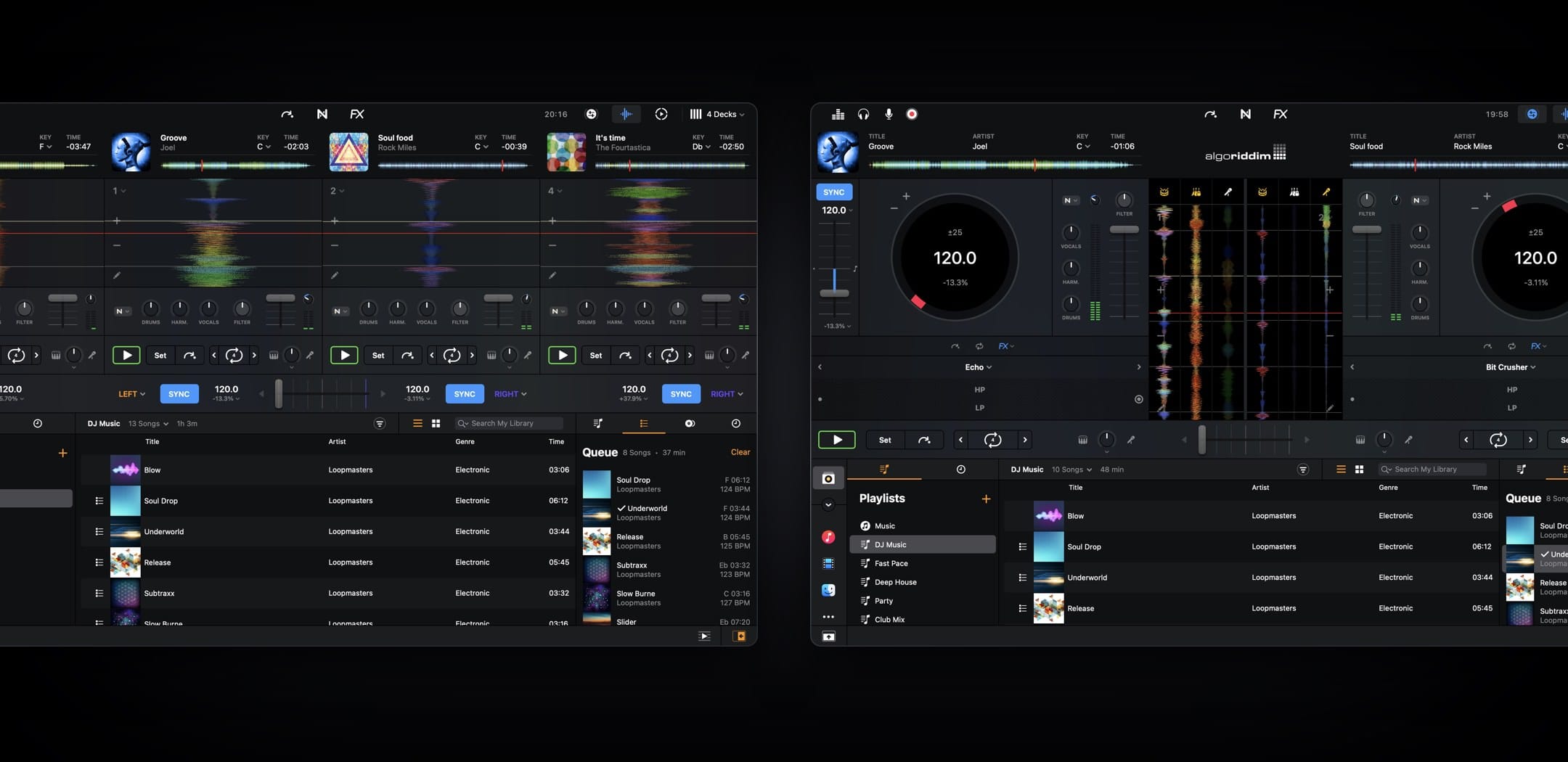
djay Pro comes with an advanced library management system that is built around a sophisticated integration with your local music, streaming services, videos, and the Finder. You can also build your own playlists and create smart track filters - finding and managing your music has never been easier!
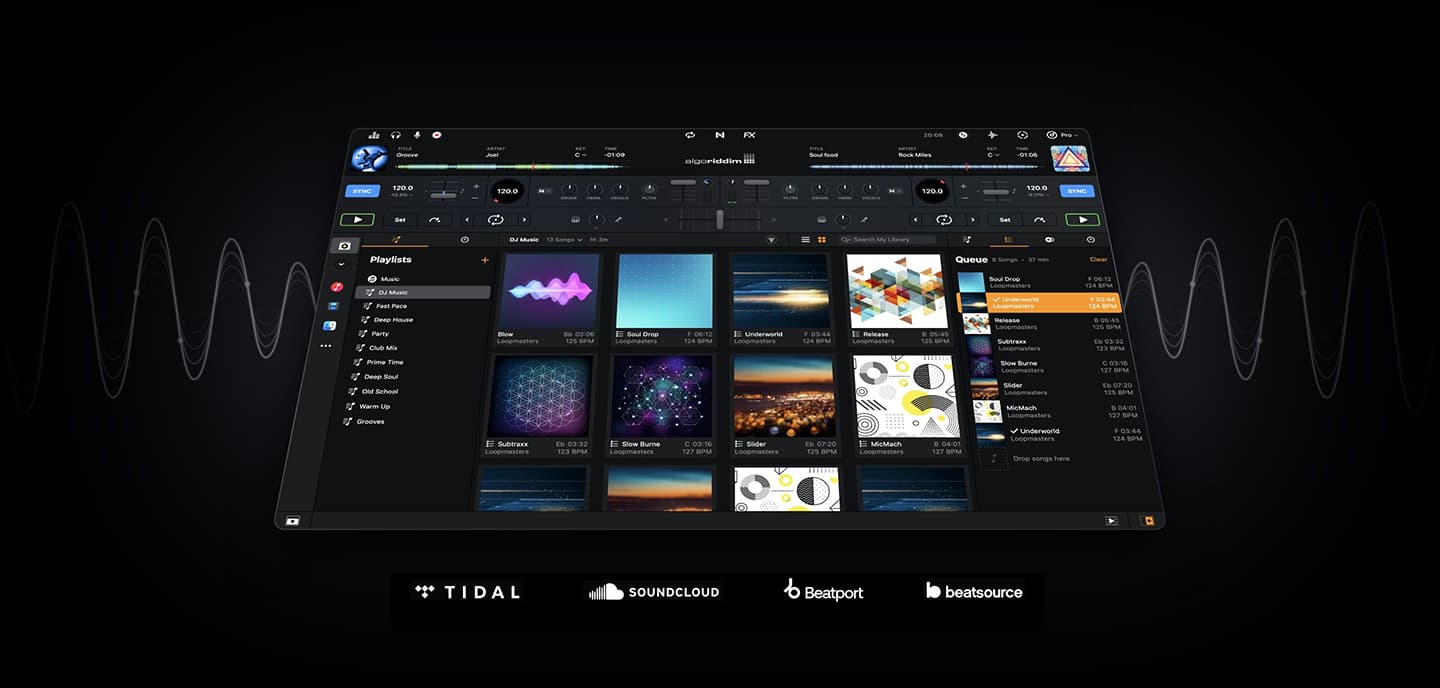
Lean back and listen to an automatic DJ mix with stunning transitions. Automix AI intelligently identifies rhythmic patterns including the best intro and outro sections of songs to keep the music flowing.
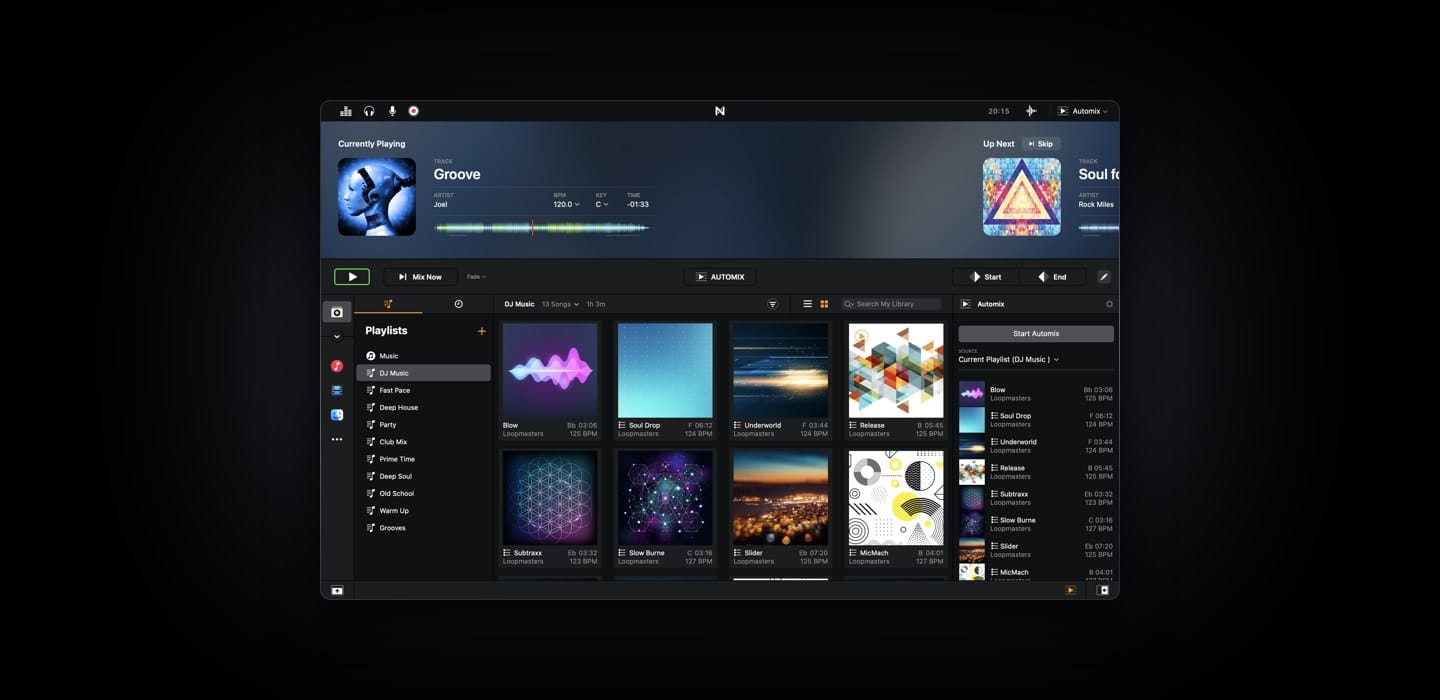
The Video mode in djay Pro allows you to mix music with videos and photos, and apply stunning visual effects. You can output the video from djay Pro directly via HDMI or Airplay to external displays.
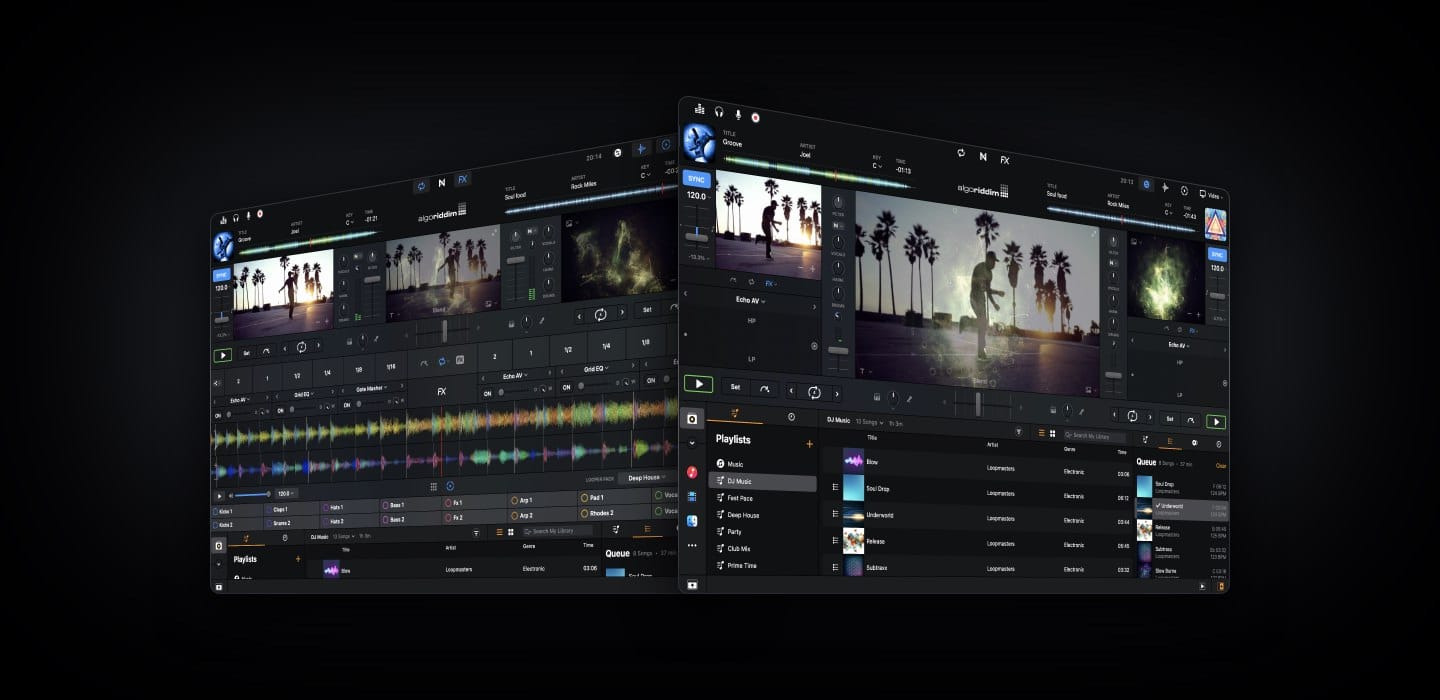
Preview and prepare the next song through headphones: By enabling djay Pro’s Split Output mode or by using an external audio interface you can cue songs through headphones independently from the mix that goes through the main speakers for live DJing.
djay Pro integrates seamlessly with professional DJ hardware. In addition to supporting over 100 DJ controllers out of the box, including CDJs by Pioneer DJ or the RANE Twelve motorized turntable, djay also includes an advanced MIDI Learn system so you can easily map buttons and knobs according to your needs.It enables you to map each hardware control on your device to individual actions in djay Pro and customize your setup to match your style and performance needs.
djay Pro offers native support for USB audio interfaces, allowing you to preview your mix through headphones while delivering pristine sound quality through the main output.
Any of our supported hardware accessories for djay Pro work plug-and-play out of the box. This allows you to effortlessly setup your preferred DJ system.
Sign up for our newsletter
I would like to read about the latest and greatest on the djay product line by Algoriddim. If I should change my mind, I can unsubscribe at any time. Further information can be found in the privacy policy.